
How to Study with Text-to-Speech Without Listening Passively

Algor Lab
October 12, 2026
You press play on a forty-page reading, answer two messages, and reach the end of a section without being able to say what it argued. The audio worked; the study session did not. Text-to-speech can remove friction from reading and make a difficult page easier to enter, but continuous playback can become background sound surprisingly quickly.
This guide gives listening a job. You will preview one section, hear it at a speed you can follow, pause to retrieve the main idea, and return to the text for correction. The method works with lecture notes, textbook prose and many articles. It also makes clear when a diagram, equation or table still needs your eyes.
Choose material that audio can carry
Start with prose that has a clear sequence: an explanation, a historical argument, a case study or the introduction to a chapter. Give the session one question, such as “Why did this policy change?” or “How does this process move from stage one to stage two?” A question keeps the voice from becoming an endless queue.
Good candidates for a first pass
- lecture notes with complete sentences;
- a textbook section built around one idea;
- an article whose claim and evidence you need to identify;
- your own notes when you want to hear awkward or missing links.
Keep the page open for visual information
Audio is a poor substitute for inspecting a formula, chart, map, code block or labelled diagram. Listen to the surrounding explanation, then stop and look. CAST’s guidance on multiple ways to perceive information also stresses that audio should remain an option alongside accessible text, not the only route to the content.
Preview before you press play
Read the heading, learning objective and any subheadings. Check whether the file has selectable text and whether the reading order is sensible. Multi-column PDFs, scans and footnotes can sound scrambled. If names, symbols or quotations matter, mark them for visual checking.
Now write a prediction in one sentence. For a biology section about photosynthesis, it might be: “This part probably explains how light energy becomes stored chemical energy.” The prediction does not need to be right. It gives you something concrete to confirm or revise.
Listen to one meaningful section
Play a paragraph or short subsection, not the whole document. Use the fastest speed that still lets you follow the reasoning; there is no universally correct number. Slow down for new vocabulary and dense arguments. Speed up only when you can still explain the passage afterward.
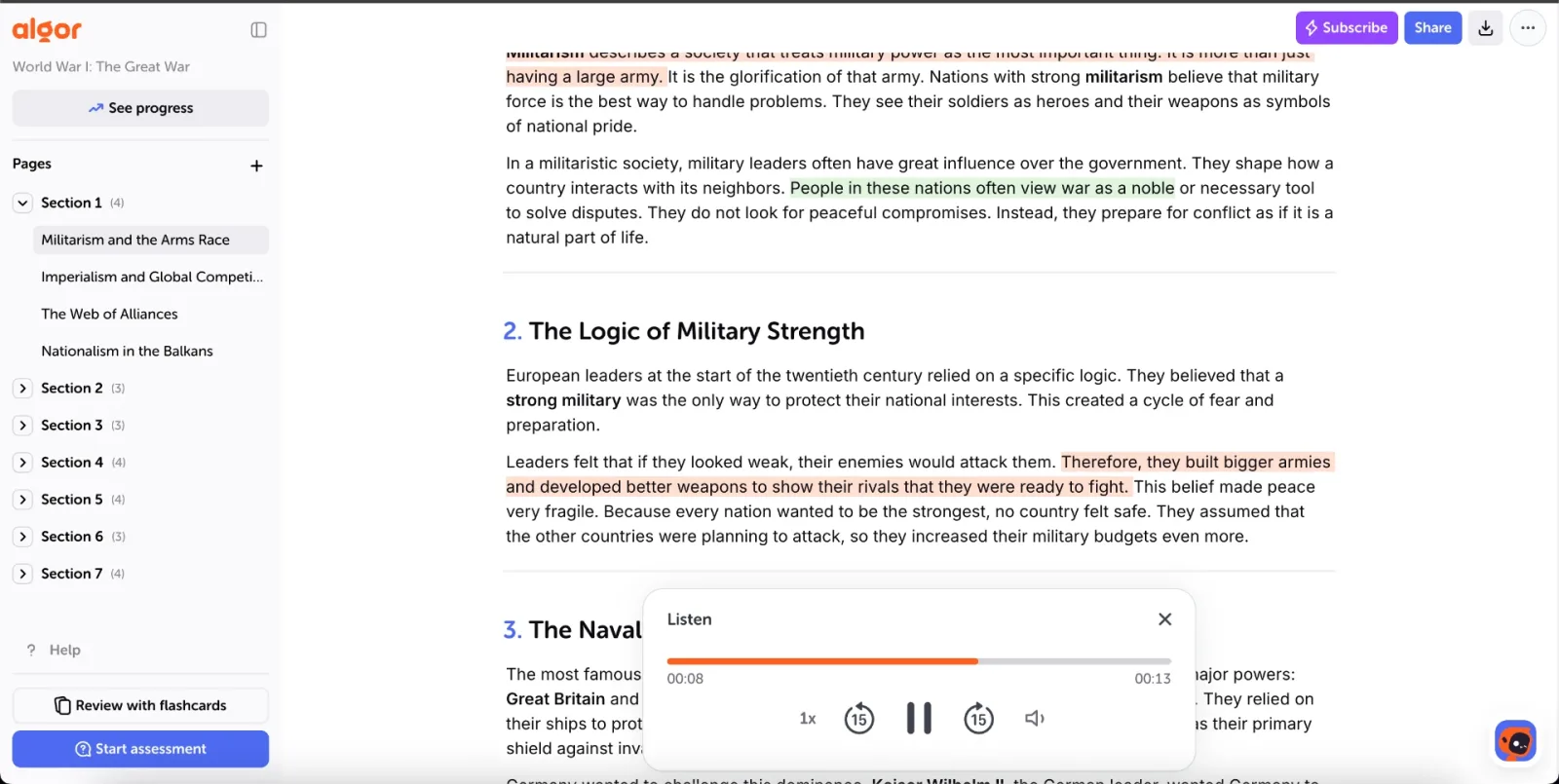
The current Algor guide to working with Sets documents Listen, highlighting, annotations and Explain with AI in the page itself. Use the voice as a pacing tool: follow the selected passage when that helps, and pause when the logic changes.
Pause and retrieve before replaying
At the end of the section, stop the audio and hide the paragraph. Say or write the point from memory. Then answer one question that requires more than a copied phrase.
Three prompts that expose gaps
- What was the main claim?
- What example or evidence supported it?
- What step could I not reconstruct?
If the answer is vague, do not immediately restart the entire recording. Return to the sentence where the link broke, listen once more, and try again. This is the difference between access and practice. Research comparing recorded-lecture review with retrieval practice also shows why time spent replaying is not the same thing as checking what you can produce.
Verify the answer against the source
Open the paragraph and compare it with your recall. Correct missing conditions, numbers and terminology. If the voice misread a name or the text came from OCR, check the original page. For a research paper, inspect figures, tables, methods and citations directly before relying on any spoken summary.
Turn the correction into a short note: “I remembered the two stages but missed the condition that light is required.” That note tells you what to practise next; “listen again” does not.
Use the right Algor audio tool for the job
Inside a Set, Listen reads the selected text. An Audio overview creates a podcast-style explanation of a page. Transcription moves in the opposite direction, turning audio or video into text. These tools solve different problems. If you need the exact wording, use text-to-speech. If you need a condensed spoken explanation, read our guide to turning a PDF into a study podcast.
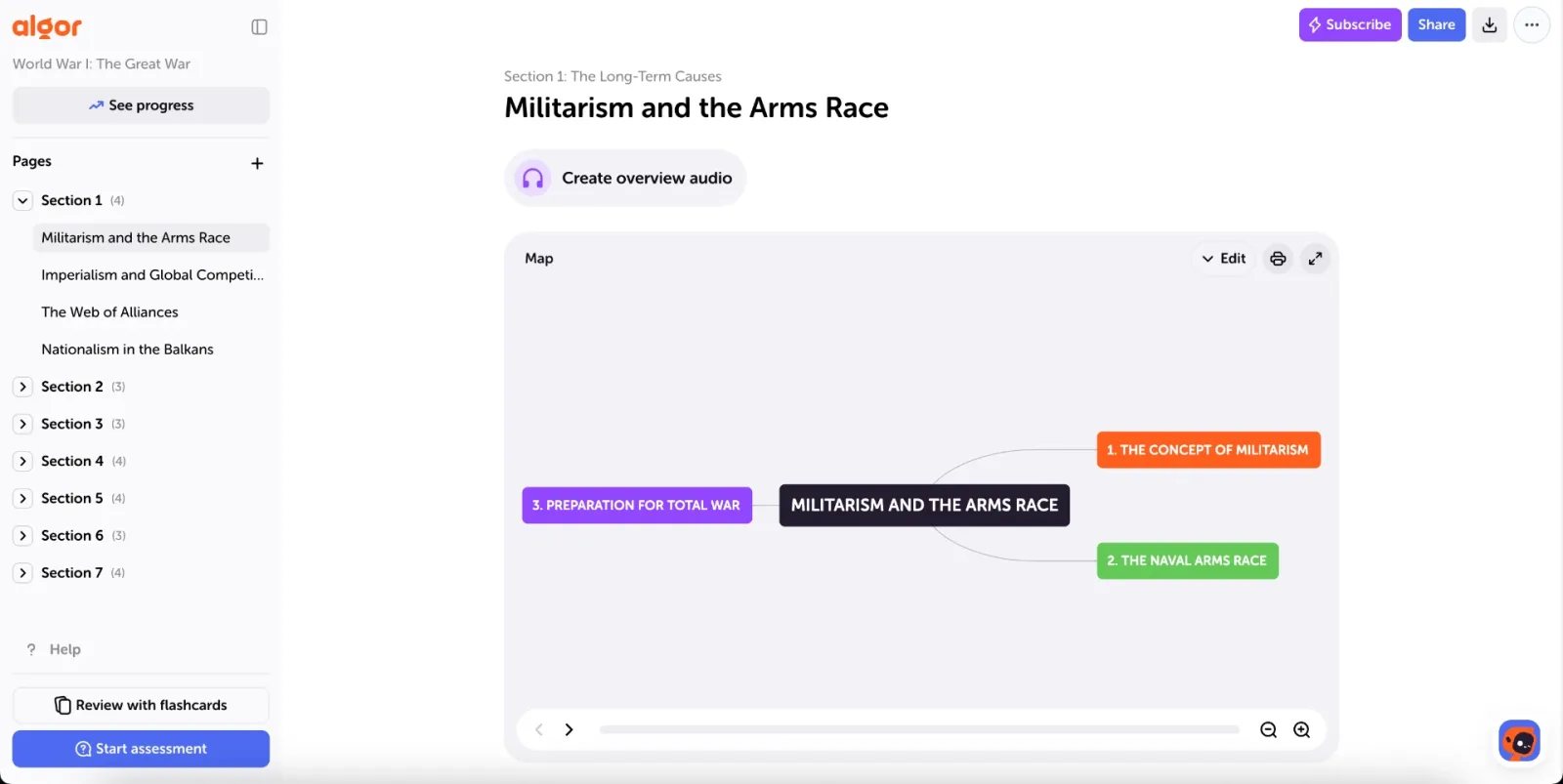
The useful transition is from listening to doing. After a section, ask the Set’s context-aware assistant about one unresolved link, or start a small assessment on that part. Flashcards suit terms; an open explanation suits a process. Algor keeps the source, editable material and practice in the same Set, but you still decide whether the answer matches your course.
A complete session with one chapter section
- Write one question and preview the headings.
- Listen to a short section while keeping the source available.
- Pause and explain the idea without looking.
- Check the page and repair the answer.
- Create one question or flashcard only for the gap you found.
This sequence may take ten minutes for an easy passage or much longer for a technical one. The duration is not a promise or a rule. The quality check is whether you can now explain or apply the idea. To strengthen the last step, the guide to active recall offers several ways to practise without the source.
Common questions
Should I listen while doing something else?
Use routine activities only for familiar review. New or assessed material usually needs enough attention to pause, inspect the source and make a response. If you cannot stop safely or take notes, treat the audio as exposure, not completed study.
Is listening better than reading?
Neither format wins for every person or task. Listening can improve access and reduce visual effort; text is easier to scan, quote and inspect. Choose by the material, then test understanding with a response you produce yourself.
What if the voice sounds wrong?
Check pronunciation, OCR and reading order. Names, formulas and multi-column layouts deserve a visual pass. Change speed only after fixing the source problem.
Turn the next page into an active listening loop
Pick one section, one question and one pause point. In Algor, create or open a Set, select the passage and use Listen. When the voice stops, close the text and answer before you press play again.


Faq
Frequently Asked Questions

Related articles
Get Started with Algor
Transform your content into structured, visual and personalized learning paths.

.svg)


