
How to make Concept Maps from your books automatically
.png)
Giulia
February 10, 2023

From your book to a Concept Map in 1 click with AI
Did you know that there is an app that allows you to Automatically transform a photo into a concept map? It's called Algor Education, it's a web app for creating diagrams and maps online and it's very easy to use: with the function”Map from Photo” just take a photo of the pages of your book or your notes to obtain a conceptual map that summarizes the source text, completely customizable online.
But how does the Photo Map work? Algor Education extracts the text present in a photograph with the automatic text recognition OCR (Optical Character Recognition) and through its Artificial Intelligence algorithms summarize the source text in the form of a concept map, a graphic diagram made of nodes containing keywords and logical-hierarchical relationships.
In a previous article we already saw how create concept maps automatically from a text with copy and paste or select it from a Pdf file with the ”Text to Map”. If you don't have a text available in digital format (PDF or open documents) but only books or paper notes, this guide is the right one for you. Let's see how to create a concept map directly from photos of a text in 5 simple steps.
1. Log in to Algor Education
The first step to automatically create concept maps from the text in your photos is to log in with your personal account from a PC or tablet. If you don't have an account yet, visit algoreducation.com and then click on Log in or go directly to app.algoreducation.com Ed sign up for free. If you have a Google account, registration will be even faster.
By registering on Algor you will have direct access to the Free Plan, which will allow you to use 30 AI credits, to be used to try all the automatic functions of the App at no cost.
2. Click on the Photo to Map button
Once logged in you will find yourself in your Personal Area, where you can quickly access the main functions of the App and easily manage all your material or maps shared by other users.

In the central strip you will find the buttons to access the different features of Algor Education. To create a concept map automatically, starting from a photo of a page of a book or from your notes, click on the button. “+ Photo Map”.
3. Take photos of your text or upload them from your device
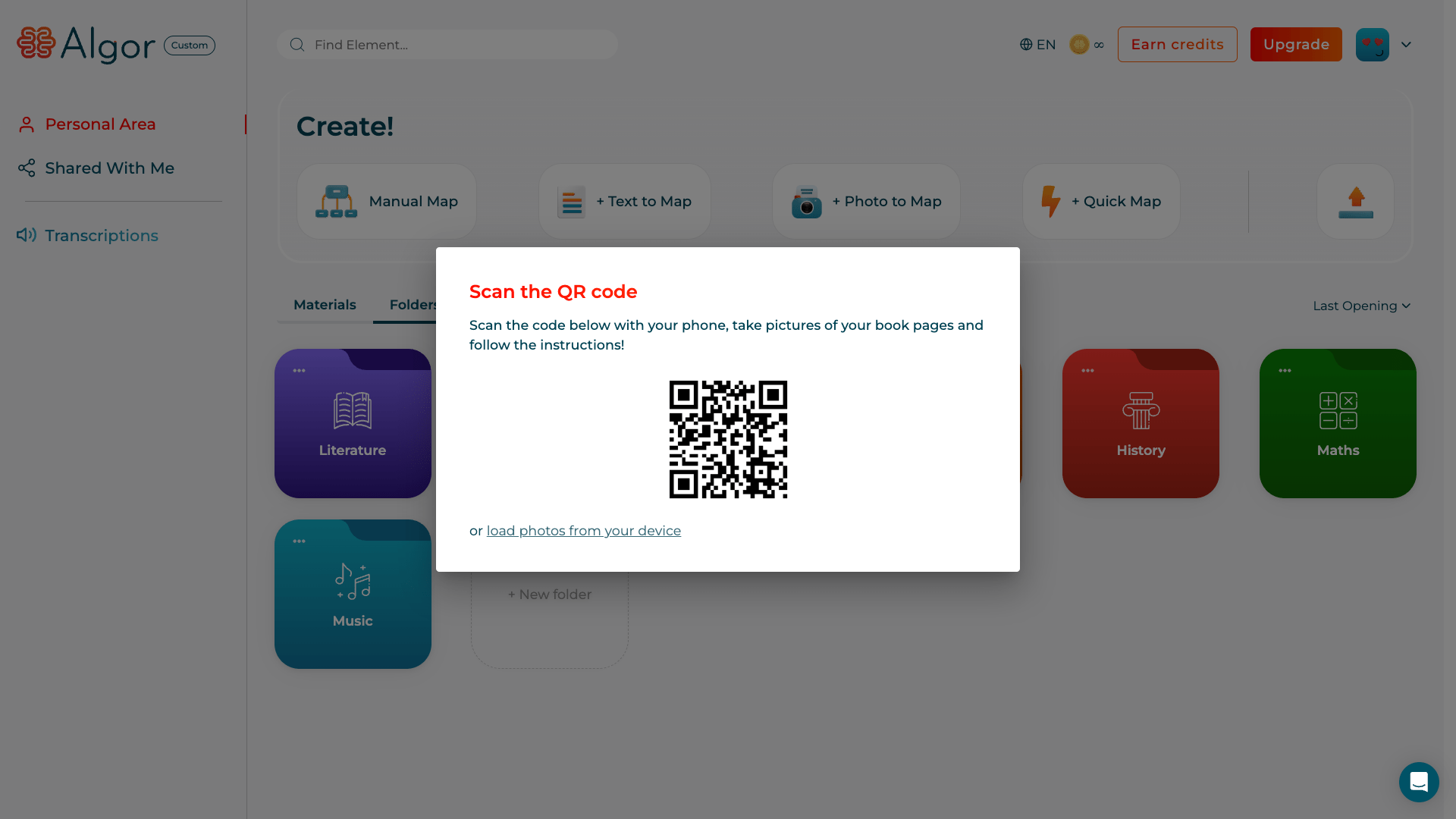
After clicking on '+ Photo Map', you will need choose one or more images that contain the text you want to transform into a map automatically. A screen will appear with different options to choose these images: you can use photos already present on the device on which you are using Algor or take photos directly from another device, such as your mobile phone or tablet. Let's see how to do it in both cases.
3.1 Map from images already on your device
To create a Map from Photos using photos already on your device, Click on the writing 'upload photos from your device' and choose the images that contain the text to be transformed into a map. For example, they could be screenshots of a digital book or a scanned document. You will be asked to order them correctly so that the order of the text that will be extracted to create the map is the right one. When you are done click on ”Proceed“ to see your map.
3.2 Map from photos taken on another device
To create a Photo Map by taking photos directly or using images in the gallery of another device, such as your smartphone, you will only need frame the QR code, click on the link that appears and follow the instructions.
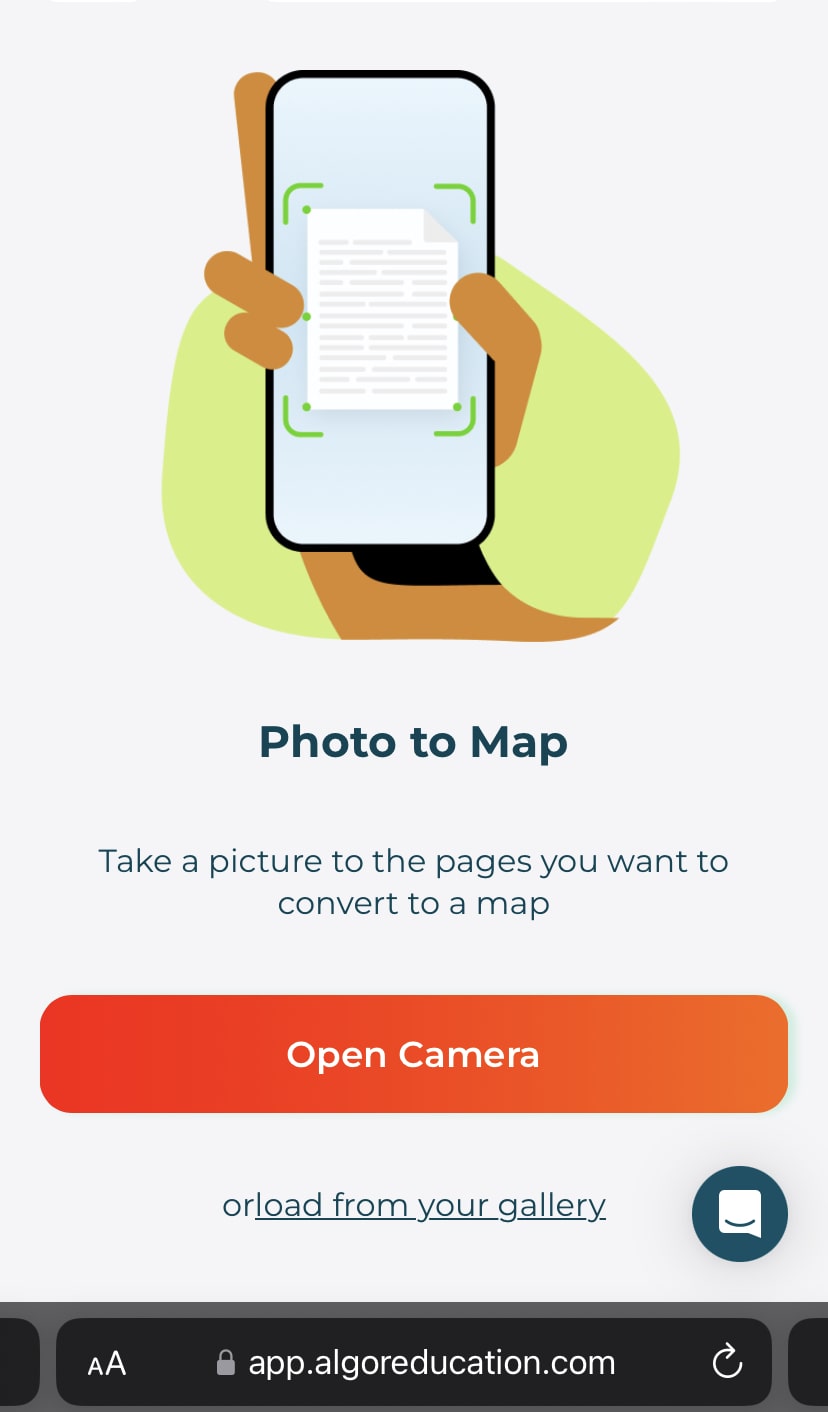
How to frame the QR? If you have an Android device, we recommend using the integrated Google Lens app, but if you have an iPad or iPhone, the camera will suffice. Once you have framed the QR, click on the link that will appear. You can Take direct photos of the book or to the notes that interest you or choose images that are already in the gallery of your smartphone (in this case you'll have to shoot them first), the choice is yours!
Take or select your photos, reorder them however you like and click on ”Proceed” to get your map from an automatic photo directly on the PC!
3.3 The better your photos, the better the AI concept map
Attention: the better the quality of the photo, the better the result of your concept map. Here are some tips to help our algorithms give you a better map from your photos:
- Frame only the page or text that interests you, avoid framing, for example, exercises at the end of the page or side notes that don't interest you.
- Take only one photo per page, avoid framing more than one page at a time, the result could be negatively affected.
- Avoid creases in pages, the sheet must be laid out properly to make sure that the app recognizes characters well.
- Avoid blurry or low-light photos, the algorithm is intelligent but it can't do magic!
Remember: at the moment the automatic map has a 15,000 character limit, so you won't be able to upload more than a certain number of photos. If the text entered exceeds the limit and is truncated, we will notify you.
4. Get your concept map online automatically
Now that you have taken your photos or selected images already on the device, Algor Education is ready to detect from your photos the text that it will use to create your concept map automatically. The text will be analyzed and synthesized by our algorithms that will provide you with a title And the various main concepts in the form of words and phrases connected in a logical-hierarchical way.
-min.png)
The concept map will appear directly on the PC or tablet from which you framed the QR code, you can view it or rework it in a personal way in the Algor Education editor, let's see with which tools.
5. Customize your map however you want with Algor Education
Now you can take advantage of all the features of the Algor Education editor to customize your concept map, even in real time with other users. You can change the font, style and colors of the text, easily change the layout of the map (concept map or mind map), move individual nodes or entire branches, insert other nodes with text, images, videos, audio, links to web pages to make the map more interactive.
-min.png)
Customize the style, colors and content of your map with images, videos, external links. And if you want to add information from documents or digital books, Algor Education allows you to upload PDF or Word files and have them communicate directly with the editor. You can also listen to them with highlighted text-to-speech.
Once you're done with the changes, you can print your map with different layouts to always have the paper version with you.
Try the Automatic Photo to Map now
Do you want to try creating an automatic photo map now? It's so easy! With the Algor Education Free Plan you will have at your disposal 30 AI credits to try for free this brand new feature. Each Photo Map costs 15 AI credits, so with the free account you can create 2 for free.
To use all the paid features of Algor Education (printing, speech synthesis, etc.), having more AI credits available every month to automatically create concept maps from your texts, you can subscribe to the Algor Education Basic or Pro Plan.
The Basic plan assures you 150 AI credits per month, the Pro plan 700 AI credits per month. For more information visit the pricing page and start for free.


Faq
Frequently Asked Questions


Jetzt mit Algor starten
Verwandle deine Inhalte in strukturierte, visuelle und persönliche Lernwege.

.svg)


